
Track the overtime you can deduct
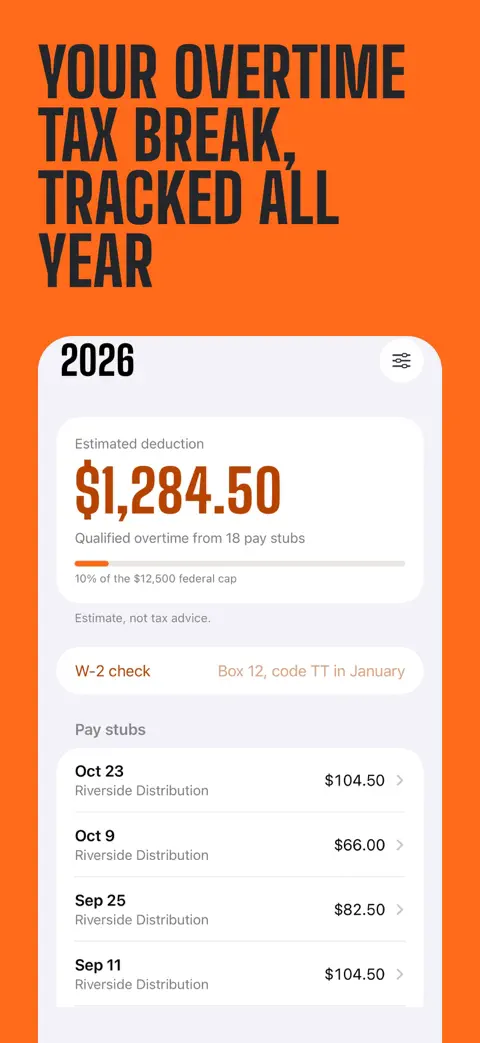
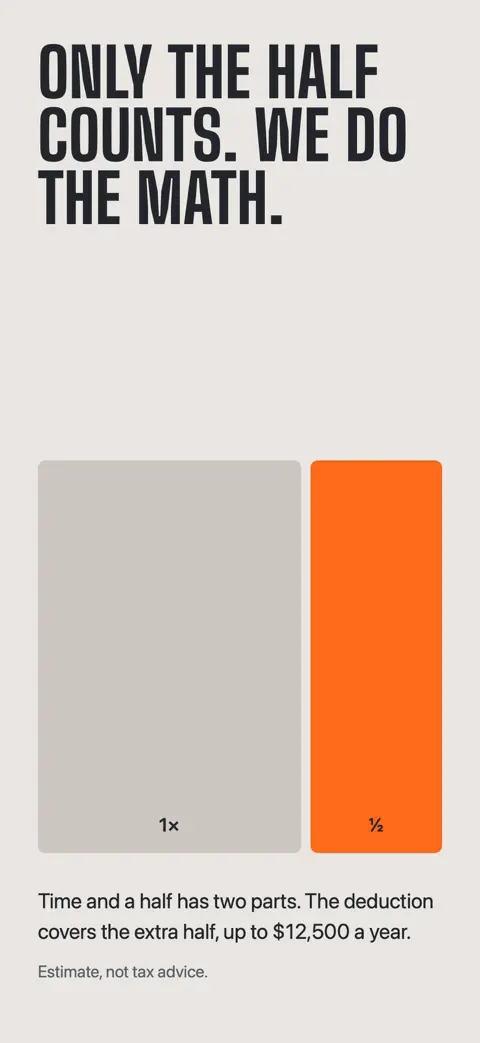
For tax years 2025 through 2028, the extra half in time-and-a-half pay is deductible on your federal return, up to $12,500 a year ($25,000 on a joint return). Halfback finds it on the pay stubs you enter and keeps a running total for the year.

iPhone app. Free for one employer, with no time limit. No account and no ads.
What Halfback does
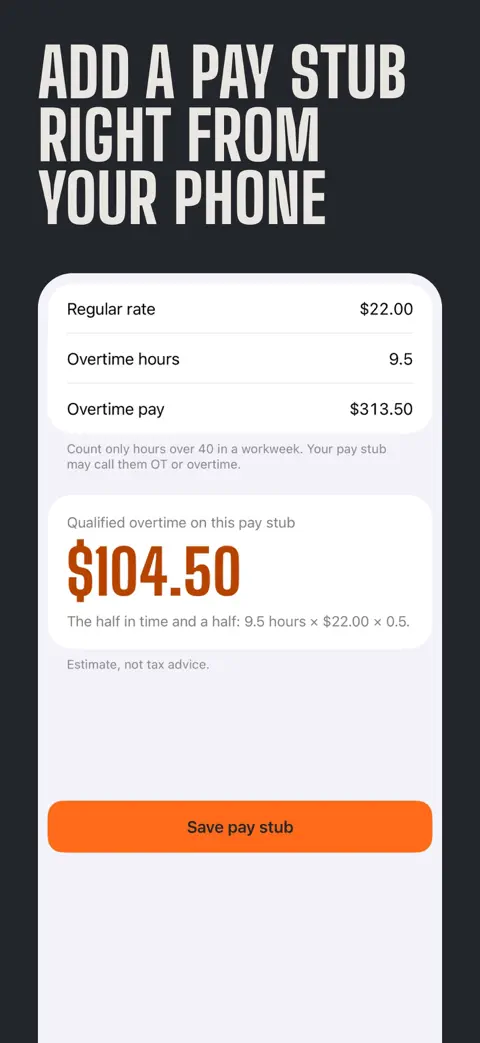
- Add a pay stub in seconds. Enter the pay date, your regular rate, overtime hours and overtime pay. Only the extra half counts, so Halfback shows the qualified part of each pay stub. If the overtime pay doesn't match time and a half, it asks you why instead of guessing.
- Your year at a glance. Qualified overtime for each pay stub and each tax year. A reminder on payday evening to add the pay stub while it's in front of you, and one in January when W-2s arrive. A Home Screen widget with your year's total and your next payday.
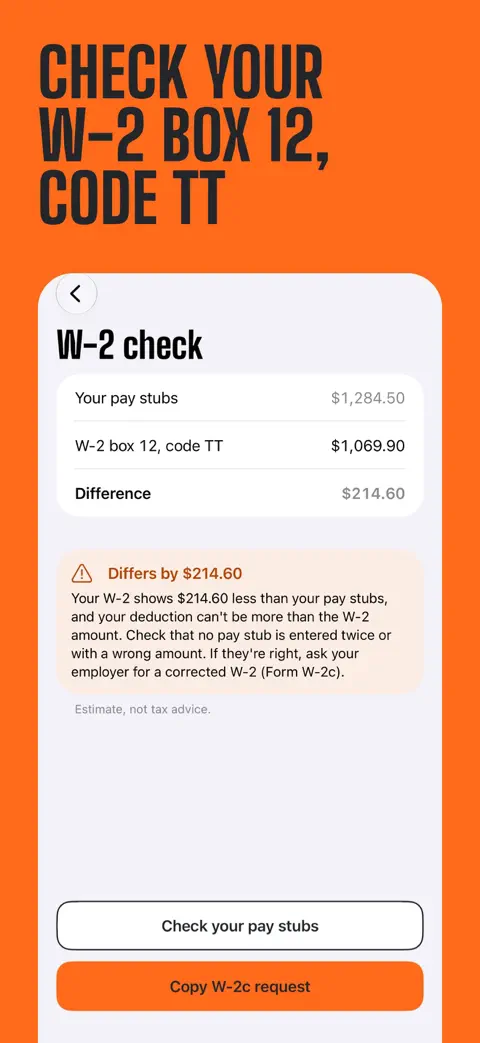
- Check your W-2. From 2026, employers report qualified overtime in box 12 of Form W-2, code TT. Halfback compares it with your pay stubs and shows the difference. If they differ, it prepares a request for a corrected W-2 (Form W-2c) for you to send to your employer.
- No account and no ads. Your pay data stays on your iPhone.
Free and Pro
Free for one employer, with no time limit: unlimited pay stubs, qualified overtime for each pay stub and each year, reminders and the small widget.
Halfback Pro adds:
- Deduction estimate, with the federal cap, the income phase-out and your filing status
- W-2 box 12 check and W-2c request
- PDF and CSV for your tax preparer
- More than one employer
- Medium and Lock Screen widgets
- iCloud sync across your devices
Pro is a yearly subscription with a 7-day free trial, or a one-time purchase.
Free calculator and guides
No download needed.
- No Tax on Overtime calculator
Estimate your deduction with the federal cap and the income phase-out.
- No Tax on Overtime rules
Who qualifies, the $12,500 limit, the income phase-out and married couples.
- What counts as qualified overtime
Only the half counts. Examples for double time, state overtime and shift differentials.
- W-2 box 12, code TT
What the new W-2 code means and what to do when it looks wrong.
Support
Halfback is an iPhone app for hourly employees in the United States. You enter your pay stubs, and it estimates your qualified overtime and your deduction for qualified overtime compensation (the "No Tax on Overtime" deduction) for tax years 2025 through 2028.
Email hello@furkanbagci.com, or tap Settings → Contact Support in the app.
Is this tax advice?
No. Halfback's figures are estimates based on what you enter. Your Form W-2, your employer's payroll records and your tax return determine what you can deduct. Check important figures with a tax professional or the IRS before you file. Halfback is not affiliated with the IRS or any government agency.
Why is my estimate different from my W-2?
Halfback estimates from the pay stubs you enter. Check that every pay stub of the year is in, and that the overtime hours and overtime pay match your pay stubs. From 2026, your employer reports qualified overtime in box 12 of your W-2, code TT. With Pro, the W-2 check compares it with your pay stubs and can prepare a W-2c request for your employer.
How do I restore Pro on a new device?
Sign in with the Apple Account you used to buy Pro, then tap Settings → Restore Purchases.
How do I cancel my subscription?
Tap Settings → Manage Subscription in the app, or go to iOS Settings → your name (Apple Account) → Subscriptions. Cancel at least 24 hours before the current period ends. Pro stays active until the end of the period you paid for.
How do I get a refund?
Apple handles all payments and refunds. Request a refund at reportaproblem.apple.com.
Where is my data stored?
On your iPhone. With Pro, iCloud sync stores it in your private iCloud account and keeps it in sync across your devices. We can't see your data, so we can't recover it for you. Keep your iPhone backed up, and keep your pay stubs and W-2s.
How do I delete my data?
Delete pay stubs or employers in the app, or delete the app. If you used iCloud sync, also delete the app's data in iOS Settings → your name (Apple Account) → iCloud → Manage Account Storage.
How do I turn off usage statistics?
Turn off Settings → Share usage statistics. While it's off, the app sends no usage statistics.